Showing posts with label Windows Server 2012. Show all posts

Thursday, 14 December 2017

System repair pending which requires reboot to complete (loop)

You get the following error message when running SFC /scannow even after you reboot?
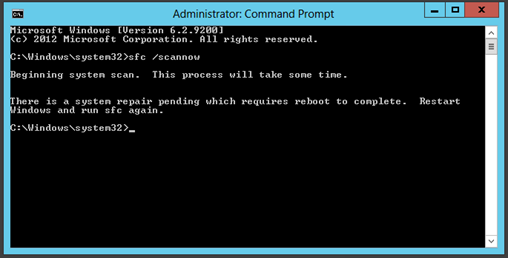
image

You might also find on reboot that Windows updates are reverting / failing.

image

You are stuck every time you run SFC as it keeps telling you to reboot?  Are you windows updates also failing?  Did you ever rename or delete the C:\Windows\SoftwareDistribution folder to fix an issues with windows updates?

Try

https://support.microsoft.com/en-us/help/2509997/you-can-t-install-updates-on-a-windows-based-computer

FIX

The following fix may work but I do not recommend it unless you know what your doing and your prepared for any issues that may occur afterwards.  Do so at your own risk!

Locate your WinSxS folder, usually C:\Windows\WinSxS

Do you have a file called pending.xml and does the date/time match the time you started having issues?

Rename pending.xml to pending.xml.old; in order to do this you must take ownership of the pending.xml file either via Windows Explorer or using takeown.

- Administrator command prompt
- takeown /f C:\Windows\winsxs\pending.xml
- Ren c:\windows\winsxs\pending.xml pending.old

Reboot and try sfc /scannow ….

Thursday, 13 March 2014

Migrating Windows SQL Cluster to another SAN?

10 easy steps .. and a few nervous twitches Smile

(1) Make sure all cluster services are running off the same server; in my case node01 has all the luns and services etc.  On Windows 2012+ you can use drain nodes.

(2) Shutdown the Cluster.

image

(3) Remove old iSCSI connections and shutdown the node with no services; then shutdown the primary node.

(4) Copy the Luns to the new SAN using the migration tools provided by the SAN supplier e.g. SANCopy making sure you copy the Lun id’s and serial numbers.

(5) Disconnect the old Luns via the San Manager from node01 and node02 so that the servers cannot see the old SAN Luns.

(6) Start node01 and configure the iSCSI connections and paths to the new SAN.

(7) From the new SAN allocate the migrated Luns to node01.

(8) In node01 check disk manager for the Luns; they should say reserved?

(9) Start the Cluster and check that the services have come back online?

(10) Repeat steps (6) and (7) on node02 and verify that both nodes are now showing in Failover Cluster Manager.

Thursday, 13 June 2013

Enhanced Mitigation Experience Toolkit 4.0

The Enhanced Mitigation Experience Toolkit (EMET) is designed to help prevent hackers from gaining access to your system.

Software vulnerabilities and exploits have become an everyday part of life. Virtually every product has to deal with them and consequently, users are faced with a stream of security updates. For users who get attacked before the latest updates have been applied or who get attacked before an update is even available, the results can be devastating: malware, loss of PII, etc.
Security mitigation technologies are designed to make it more difficult for an attacker to exploit vulnerabilities in a given piece of software.

EMET allows users to manage these technologies on their system and provides several unique benefits:

No source code needed.
Highly configurable.
Helps harden legacy applications.
Ease of use.
Ease of deploy.
On-going improvement.

The toolkit includes several pseudo mitigation technologies aimed at disrupting current exploit techniques. These pseudo mitigations are not robust enough to stop future exploit techniques, but can help prevent users from being compromised by many of the exploits currently in use. The mitigations are also designed so that they can be easily updated as attackers start using new exploit techniques.

More information can be found here;

Thursday, 16 May 2013

Windows 8.1

Public preview available via the Windows Store 26th June 2013.

More information can be found here and here.

Thursday, 28 March 2013

Tuesday, 19 March 2013

Windows Server 2012 / 2008R2 with iSCSI error 80 or 83 VPD

If you encounter the following error when testing a Windows Server Cluster Disk;

Two disks have been found on node node1 that cannot be distinguished from one another. The disks involved have disk signature afac8423, SCSI page 83h VPD descriptor 60060160FB602D00E8C82BA2978CE211, SCSI page 80h VPD Serial Number CKM00112500835. Please verify the storage configuration. You must either mask (unpresent, detach) one of these LUNs at this node, or, run validation and specify a disk list that includes only one of these disks, for example by using the Test-Cluster cmdlet in Windows PowerShell.

The error probably relates to your MPIO configuration;

image

When you install MPIO you must configure it for iSCSI (if you are using iSCSI); so under Discover Multi-Paths tick “Add support for iSCSI devices” click Add and you will be prompted to Reboot.

After the Reboot you should now see the following iSCSI setting under MPIO devices.

image

Retest your cluster and hopefully the error will now be gone!

Wednesday, 30 January 2013

Security Compliance Manager (SCM) 3.0

Take advantage of the experience of Microsoft security professionals, and reduce the time and money required to harden your environment. This end-to-end Solution Accelerator will help you plan, deploy, operate, and manage your security baselines for Windows client and server operating systems, and Microsoft applications.

Access the complete database of Microsoft recommended security settings, customize your baselines, and then choose from multiple formats—including XLS, Group Policy objects (GPOs), Desired Configuration Management (DCM) packs, or Security Content Automation Protocol (SCAP)—to export the baselines to your environment to automate the security baseline deployment and compliance verification process.

Use the Security Compliance Manager to achieve a secure, reliable, and centralized IT environment that will help you better balance your organization’s needs for security and functionality.

Key Features & Benefits

  • Integration with the System Center 2012.
  • Import and take advantage of your existing Group Policy or create a snapshot of a reference machine to kick-start your project.
  • Configure stand-alone machines: Deploy your configurations to non-domain joined computers using the new GPO Pack feature.
  • Updated security guidance: Take advantage of the deep security expertise and best practices in the updated security guides and the attack surface reference workbooks to help reduce the security risks that you consider to be the most important.
    Centralized Management of Your Baseline Portfolio.
  • Multiple Export Capabilities: Export baselines in formats like XLS, Group Policy objects (GPOs).

More information can be found here;

Tuesday, 29 January 2013

Windows Server 2012 Hyper-V and NEC SDN Virtual Switch

The ProgrammableFlow PF1000 virtual switch for Windows Server 2012 customers simplifies complex networks and integrating server and network virtualization with a single control plane for the Windows Server Hyper-V customer.  This integration enables advanced network automation, rapid delivery of network services, easy VM mobility, and consistent application of business policy across the network.

image


Supported OS Windows Server 2012 Datacenter Edition
OpenFlow Ver OpenFlow ver 1.0
Maximum vSwitches     256 switches per server
Maximum vPorts 1280 ports per virtual switch

More information can be found here and here;

Don’t forget the Cisco Nexus 1000v for Hyper-V and 5nine Security for Hyper-V.

Thursday, 10 January 2013

Windows Server 2012 Failover Cluster Manager and KB2750149

There seems to be an issue with KB2750149 when you install this update in a Windows Server 2012 Cluster i.e. the Failover Cluster Manager causes an exception saying “a weak event was created and it lives on the wrong object there is a very high chance this will fail”

The solution is to either not install or uninstall the update until a fix is found; more information can be found here and here.

UPDATE
Failover Cluster Management snap-in crashes after you install update 2750149 on a Windows Server 2012-based failover cluster; KB2803748.

All supported x86-based versions of Windows 8 DownloadDownload the update package now.

All supported x64-based versions of Windows 8 DownloadDownload the update package now.

All supported x64-based versions of Windows Server 2012 DownloadDownload the update package now.

Wednesday, 12 December 2012

Windows Server 2012 Remote Desktop Services Showcase Videos

Virtual Desktop Infrastructure Overview – Summary of the value of Remote Desktop Services in Windows Server 2012

Quick VDI Wizard – Set up a virtual machine based deployment on a single server.

Set up an RDS VDI deployment – Set up a virtual machine-based deployment.

Set up an RDS session deployment – Set up a session-based deployment.

RemoteFX – Learn about the enhancements made for end user discovery and experience.

More information can be found here;

Friday, 9 November 2012

SQL Server® 2012 Service Pack 1 (SP1) released

List of the bugs that are fixed in SQL Server 2012 Service Pack 1 can be found here;

- Cross-Cluster Migration of AlwaysOn Availability Groups for OS Upgrade
- Selective XML Index
- DBCC SHOW_STATISTICS works with SELECT permission
- SSMS Complete in Express
- SlipStream Full Installation
- BI (with SQL Server SP1, Office and SharePoint Server 2013 Preview) are:
   - Enable self-service BI as a natural part of users day-to-day activities in Excel 2013:
   - Access and mash-up data from any source (PowerPivot).
   - Stunning visualizations and data discovery (Power View).
   - Discover, assess and audit user created spreadsheets via SharePoint Server 2013 Preview.
   - A new version of Reporting Services add-in for SharePoint 2010 and updates for SharePoint 2013.
   - Share and collaborate on self-service BI assets via SharePoint Server 2013.

Download details can be found here;

Tuesday, 6 November 2012

RDP 8.0 for Windows 7 now available

The RDP 8.0 update will enable RDP 8.0 (including all the RemoteFX enhancements in Windows 8 that make RDP 8.0 the protocol of choice for VDI) on Windows 7 Service Pack 1. Specifically, the update will provide the following capabilities.

Client access devices running Windows 7 SP1 and Windows Server 2008 R2 will benefit from:

  • Remote Desktop Connection 8.0 Client: Remote Desktop Connection 8.0 client that is compatible with RDP 8.0 and allows users to use new features in RDP 8.0.
  • Dynamic In-Session USB Redirection: Enables users to select USB devices for redirection even in the middle of a remote session.
  • Improved single sign on experience for Remote Desktop Web Access: Simplifies and significantly enhances end user experience by enabling users to provide their user name and password just once when connecting to IT published apps and desktops. Users are not asked to provide their username and password for subsequent connections.
  • Reconnect for RemoteApp and Desktop Connections: Enables end users to easily disconnect and reconnect to IT published apps and desktops.
  • Support for Lync 2013 in VDI : Enables end users to have a fast and fluid video conferencing experience with Lync 2013 in their virtual desktops.
  • Support for Nested Sessions :Support for running a Remote Desktop Connection session within another Remote Desktop Connection session

Windows 7 SP1 virtual desktops running in the datacenter will benefit from:

  • RemoteFX for WAN: Enables end users even on WAN to have a fast and fluid experience by employing advanced techniques such as intelligent and adaptive UDP transports, network loss tolerance and recovery, etc.
  • RemoteFX Network Auto Detect: Automatically detects network characteristics and optimizes user experience accordingly.
  • RemoteFX Adaptive Graphics: Delivers a rich graphics experience that dynamically adapts to server load, client access device load and network characteristics.
  • RemoteFX Media Streaming: Enables end users to get a smooth media experience even on WAN networks for all media content formats.
  • RemoteFX USB Redirection for non VGPU Virtual desktops: Enables users to use their USB devices with IT provided RemoteApp applications and remote desktops.
  • Support for Nested Sessions: Support for running a Remote Desktop Connection session within another Remote Desktop Connection session.
  • Performance counters for monitoring user experience. Watch out for a blog post on this topic with more details.

More information can be found here and here; download update and RDP8.

Monday, 5 November 2012

Thursday, 1 November 2012

Windows Server 2012 Essentials (x64) now available on MSDN

Windows Server 2012 Essentials (x64) - DVD (English)
Release Date: 10/9/2012
Size 4114 MB
File Name: en_server_install_disc_windows_server_2012_essentials_x64_dvd_1022281.iso
Languages: English
SHA1: 1F3FBF9CD23F864A2ACC6B7A6A8E6A9EB94B5C52

Windows Server 2012 Storage Server and Foundation (x64) on MSDN

Windows Server 2012 Storage Server and Foundation (x64) - DVD (English)
Release Date: 9/4/2012
Size 3401 MB
File Name: en_windows_server_2012_storage_server_and_foundation_x64_dvd_915793.iso
Languages: English
SHA1: A0740FE126DA88A1F0490F071EFA66B81AC02581

Tuesday, 9 October 2012

Windows Server 2012 Essentials RTM

Windows Server 2012 Essentials has reached the release to manufacturing (RTM) milestone and it will be generally available on November 1, 2012.

Some quick product highlights are:

  • Enable a dynamic, modern work style with access from your devices by using Remote Web Access (RWA), and take advantage of Windows Phone 8 and Windows 8 devices for a superior experience with rich modern “My Server” apps.
  • Enjoy peace of mind knowing that your data is well-protected by complementing your on-site backups with Windows Azure Online Backup, as well as utilizing integrated support for the new Windows 8 File History feature.
  • Choose the email and collaboration option that’s right for you, whether that’s in the cloud with Office 365 or a hosted service provider, or running on a local server.
  • Quickly and easily respond to increasing data capacity needs with support for Storage Spaces, which allows you to create elastic, resilient storage for your files and folders.

More information can be found here;

Monday, 24 September 2012